Gradients are where DTF breaks
What looks like a soft transition on screen turns into a solid sheet of ink on the film.
Powder sticks where it should not, the transfer ends up stiff, and the shirt carries a plastic patch instead of a print. The fix is halftones — and that is where the guessing starts: which technique, what dot size, how much it opens in the soft areas.
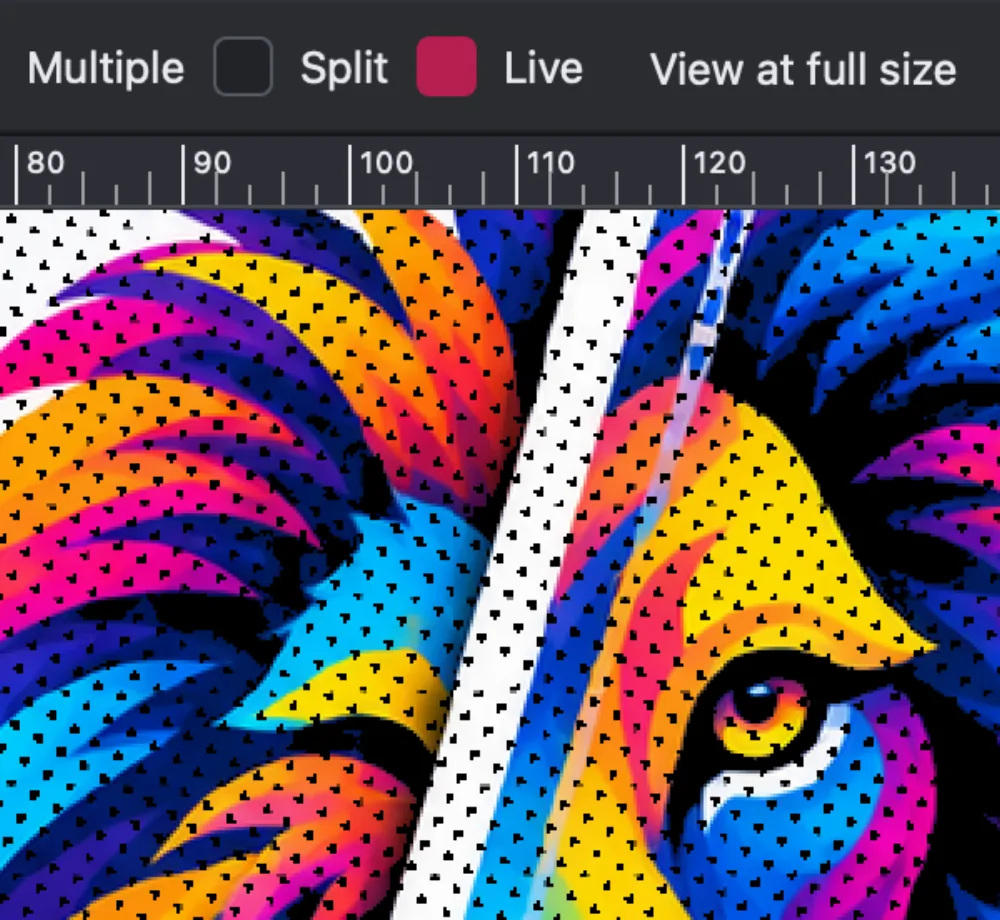
DTReady ships several halftone techniques already dialed in and lets you see each one applied to your design, at the size it will actually print, before you export anything.
This is DTF prep in action
Pick a technique, see it on your design, and export ready for your RIP.
Several techniques — you pick the one that suits the artwork
A portrait with soft fades does not behave like a flat logo gradient, and neither behaves like an illustration with long shadows. You switch between techniques and watch the result on your own file: how the dots open in the soft areas, what happens to solid fills, how the colour holds up.
Once you find the one that works, it is saved into your workflow and repeats on every job that looks like it.
Size is decided before, not after
Halftones are calculated at the real print size. If you prep large and scale down later, the dot you approved is not the dot that prints. You set the output size inside the workflow and everything is computed against that measurement.
Cleanup, upscaling, and background in the same run
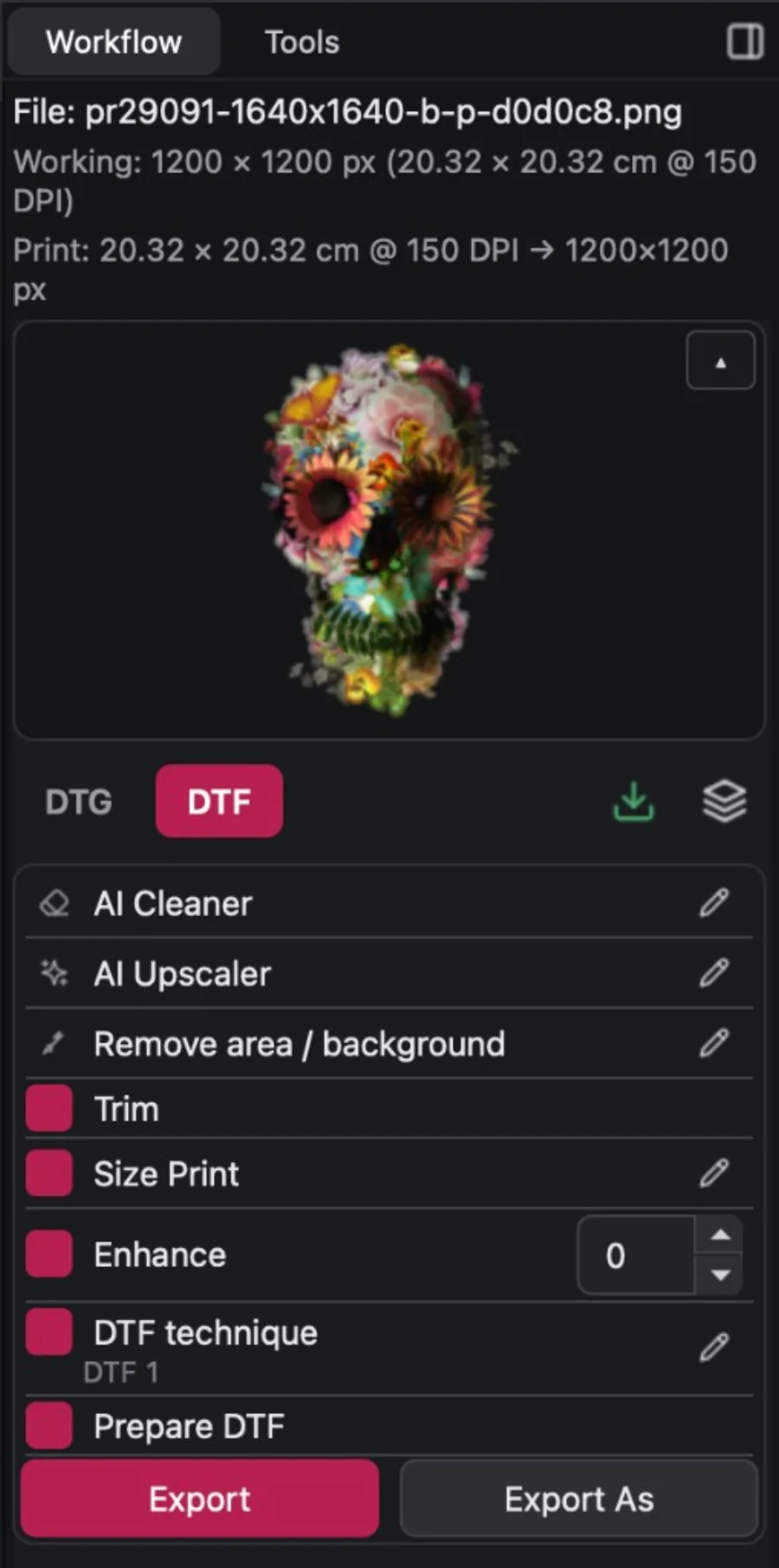
One pass over the file instead of one tool per task.
AI cleanup
Stray pixels and leftovers that are not part of the design get removed before anything else.
AI upscaling
If the file is too small for the size you need, the resolution goes up first.
Background
Removed automatically, or by hand with the erase tools when the design is tricky.
Trim and print size
No empty margins around the artwork, and the real output size set before the halftone is calculated.
Halftone and white
The technique you picked is applied, and the white layer comes out with it.
The white layer for Pet Film
The file comes out with its white resolved, and you can review it on its own before exporting, the same way you review the colour. What you see on the canvas is what goes onto the film.
Then the sheet
When the designs are ready, Nesting arranges them on the Pet Film automatically, packing them to waste as little material as possible, and exports the full sheet ready to print.
The file that comes out
You export TIFF, PNG, PSD, PSB, or PDF — ready for your RIP or for other uses. DTReady does not talk to the printer and does not replace your RIP: it delivers a file that is already print-ready.
Questions shops ask
Why do my DTF gradients feel plastic on the garment?
A smooth gradient lays down a solid sheet of ink on the film. Powder sticks across the whole area and you end up with a stiff patch. Halftones break that area into dots, so there is less ink and the print stays soft.
What LPI should I use for DTF halftones?
Most shops land between 25 and 30 LPI with the screen angled around 22.5 degrees. Rather than guessing, DTReady shows the dots on your own design at real print size so you can compare before exporting.
Do I need Photoshop to prepare DTF files?
No. DTReady is a standalone desktop app for Mac and Windows. It does not run as a Photoshop action or plugin, so you do not need an Adobe subscription to use it.
Is DTReady a RIP?
No. It prepares the file and exports it for the RIP you already use. You keep your RIP and your printer driver exactly as they are.
Are my designs uploaded anywhere?
No. It runs on your shop computer and your files stay there, unless you specifically choose cloud AI.
Does it include Pet Film nesting?
Yes. Nesting lays out your designs on the Pet Film automatically and exports the full sheet ready to print, from the same app where you prepared the halftones.
Is the AI local or in the cloud? Do I need credits?
Cleanup and upscaling can run locally on your computer, with no per-use fee. If you want more speed, you can use cloud AI; that path uses credits.
Do I need a powerful computer?
No. A normal work machine is enough, even for local AI upscaling. Speed depends on your hardware, but no special machine is required.
Try it on a design that gave you trouble
Install it on Mac or Windows. 15 days with the full app; after that, the program stays free with basic DTF options — lifetime access. Pick a halftone technique on a file you had to reprint and compare it with what you print today.
If you also print DTG, take a look at our DTG solution.