
Colour is rarely the problem
What goes underneath is.
The white layer on a dark garment, the edge that peeks out, the background that was never really clean, the file that arrived too small. Every one of those costs a garment when it goes wrong, and you only find out after it is printed.
DTReady builds that whole file and shows it to you first.
This is DTG prep in action
White underbase, edge choke, and a print-ready file — in one pass.
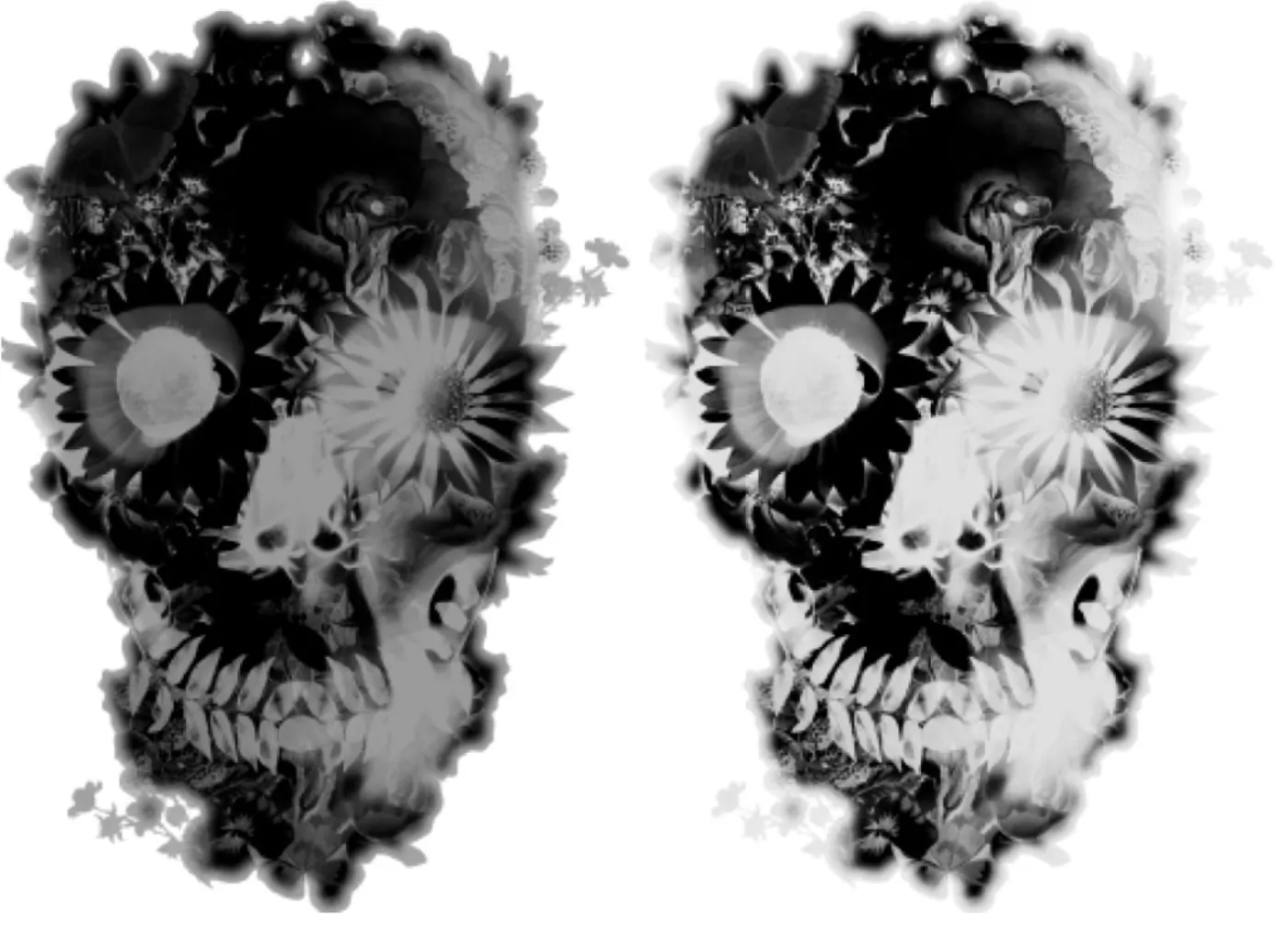
Dark garments: the underbase generates itself
The software calculates the white layer from your design and includes it as a separate channel, which is how your RIP expects to receive it.
You can save white ink by reducing white where it matches the garment colour or sits on black. DTReady does not only prep the file — it helps you save white ink.
Light garments: clean and at the right size
On light fabric you do not need white underneath, but you do need the design clean and at the real measurement. The workflow scales to the print width and resolution, removes what is left over around the artwork, and leaves the file ready — with no white layer you are not going to use.
All the prep work in one pass
What used to be several Photoshop actions and several rounds of checking is a single pass over the file.
AI cleanup
Finds leftovers that are not part of the design and removes them.
AI upscaling
Raises the resolution when the file does not reach the size you need.
Background
Removed automatically, or by hand with the erase tools when the design is tricky.
Trim
No leftover space around the artwork.
Print size
Set to the real output measurement.
Colour adjustments
Whatever you defined for that kind of job.
White layer
Generated and ready as a separate channel.
Final tweaks
And the file is ready to export.
You decide which steps run. What you configure once is saved as a workflow and repeats identically on every file after it.
One file or fifty
For a one-off design you open the Editor and work on it calmly. For the day's load you send the batch to Jobs with the workflow already saved and export the lot. Before printing, the Inspector lets you open the finished file and check its layers, measurements, and resolution.
The file that comes out
You export TIFF, PNG, PSD, PSB, or PDF — ready for your RIP or for other uses. DTReady does not talk to the printer and does not replace your RIP: it delivers a file that is already print-ready.
Questions shops ask
Does it work for light and dark garments?
Yes. On dark garments it builds the white underbase as a separate channel so you can choke the edge and review it. On light garments it skips white you will not use: it cleans the file, scales it to print size, and leaves it ready.
How do I save white ink?
By cutting white where it does not help: areas that match the shirt colour and zones under black. DTReady does that in the workflow and shows the white layer before you export, so you do not waste ink or test shirts.
Is DTReady a RIP?
No. It prepares the file and exports it for the RIP you already use. It exports TIFF, PNG, PSD, PSB, or PDF —with white as a separate channel when needed— ready for your RIP. You keep your RIP and printer driver exactly as they are.
Does it work with my RIP (Wasatch, CadLink…)?
Yes. DTReady does not replace your RIP: it hands it a ready file. You export in the format your flow already uses (TIFF, PNG, PSD…) and keep going with Wasatch, CadLink, Ergosoft, or another external RIP.
Does it prepare DTF as well?
Yes. The same app prepares DTG and DTF: halftones, Pet Film nesting, and export ready for your RIP. If your shop runs both, you do not switch software.
Do I need Photoshop for this?
No. DTReady is a standalone desktop app for Mac and Windows. It does not run as a Photoshop action or plugin, so you do not need an Adobe subscription.
Are my designs uploaded anywhere?
No. It runs on your shop computer and your files stay there, unless you specifically choose cloud AI.
Is the AI local or in the cloud? Do I need credits?
Cleanup and upscaling can run locally on your computer, with no per-use fee. If you want more speed, you can use cloud AI; that path uses credits.
Do I need a powerful computer?
No. A normal work machine is enough, even for local AI upscaling. Speed depends on your hardware, but no special machine is required.
How do I avoid a white halo on the edges?
By choking the white underbase a little against the colour. In DTReady you pull that edge back with a control and see the change immediately, instead of printing a shirt to find out.
Why does it print a box around the design?
Because the file is not really transparent. A JPEG has no transparency at all, and a PNG can still carry an opaque background. Anything opaque gets an underbase and prints. DTReady removes the background and trims the artwork before generating the white.
Can I review the white layer before printing?
Yes. DTReady lets you view the white layer on its own, choke the edge, and decide how much underbase you need before exporting — without burning a test shirt.
Try it with your own files
Install it on Mac or Windows. 15 days with the full app; after that, the program stays free with basic DTF options — lifetime access.
If your work is Pet film rather than garments, look at DTF prep.